Getting started
The first time you open Ochre it asks for your business — name, address, tax ID, and base currency. That same first screen offers an optional logo, from Photos or Files, with a thumbnail once you've chosen one and a way to remove it before you continue — skip it and add one anytime afterwards, from Settings. Three quiet steps and you're in. Ochre reads your device's region to pre-fill sensible defaults (country, currency, a fiscal-year start where we know your market's, and — for India — GST wording), all of which you can change.
Already used Ochre on another device, signed into the same iCloud account? This first screen instead says, while it checks, “Checking iCloud for an existing book…” — then a plain sentence on whether your book was found, why it wasn't yet, or that iCloud couldn't be reached. The check never holds the screen for more than a few seconds.
One step asks your trade — pick yours from the list, or choose Other and tell us what you do in a short text box. Picking a trade from the list starts you with a matching catalog and wording; Other is just a label — nothing is seeded from it. Either way the name is kept on the business and you can edit it later from Settings → Business.
One of those steps is a single toggle: charge tax on your invoices? — the same question, one tap, in every country. Turn it on and Ochre suggests a starting tax class and rate for your market from a global catalog; turn it off and the tax layer disappears from your documents entirely. Nothing here is fixed — revisit it any time from Settings → Tax rates, an accessible editor for creating and adjusting the tax classes your business charges.
The last step shows what you'd actually pay — your plan prices, straight from the App Store, with See plans for the detail. It's an offer, not a requirement: drafting stays free either way, and nothing is charged unless you choose to start a plan. You can see the same thing later from Settings → Subscription, which always shows what applies to you — See plans if you haven't chosen one yet, Switch to yearly if you're on the monthly plan, or Own Ochre for life at its App Store price while you're subscribed. Lifetime is a separate purchase, not a top-up — nothing already paid carries over automatically.
You can run more than one business from the same app. The name at the top of the sidebar is a switcher: tap it to add another business or move between them. Every screen, number, and document is scoped to the business you're in.
The workspace
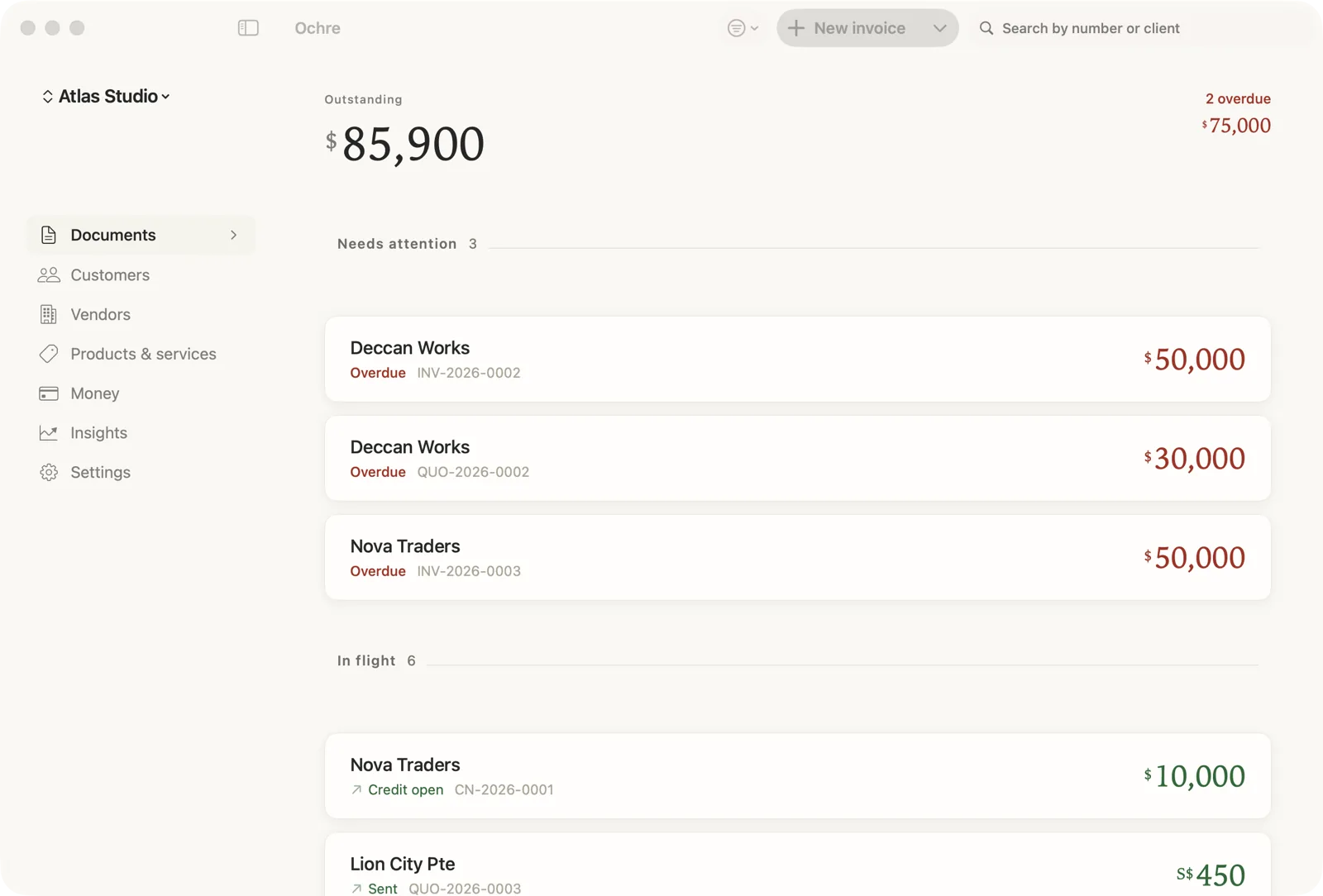
The sidebar is your map: Documents, Customers, Vendors, Products & services, Money, Insights, Settings. Documents expands into Invoices, Quotations, Credit notes, and Purchase orders — tap the chevron to fold or unfold that group; it stays how you leave it.
Documents opens with a money band up top — your total outstanding and, in warm ink, the overdue slice:
Outstanding
Below it, documents are grouped by what needs you — Needs attention then in-flight, then settled — so the work that matters is first. Search by number or client at any time. You can jump to any section from anywhere, even while deep inside a customer or a document.
Multiple businesses
One purchase covers every business you run — not one per business, not one per device. The business name at the top of the sidebar is a switcher, not just a label: tap it to move between the businesses on this device, or choose Add business… for a new one, which opens the same short setup as the first — see Getting started.
Everything is scoped to the business you're in: documents, customers, products, accounts, tax rates, invoice numbering, and the paper design — template, accent, logo — all belong to one business and switch with it. Which business is active is set per device, so you can be in one on your iPhone and another on your Mac; the books for both stay in sync, only which one you're looking at doesn't.
Settings → Businesses is where you manage them: rename one in place, archive a business you're no longer using — it disappears from the switcher, and every invoice, client, and ledger row stays exactly where it is, on disk and in your backups — and unarchive it later if you need it again. The business you're currently in can't be archived.
Creating a document
Hit New invoice — its chevron also opens Quotation and Purchase order. A new draft opens straight into the customer picker.
- Pick the customer — the list is ordered by who you billed most recently, and it's searchable. Not there yet? Create them inline.
- Add lines — start typing a description and Ochre suggests matches from your catalog; press Tab to complete the top one (it fills the rate and tax), then type the quantity and hit return. Line done.
- Set the details — dates, currency, and (for foreign currencies) the exchange rate, pre-filled with the last rate you used for that currency.
The document you're editing is the invoice — what you see is what prints. When it's ready, press Issue: Ochre allocates the next number in your series and locks it Locked — an issued invoice is a legal record, so it can't be quietly changed. The PDF preview opens by itself so you can send it right away.
Paid at sale issues the invoice and records its payment in one step — for over-the-counter sales.
Recurring invoices
Right-click an issued invoice on the Mac, or long-press one on iPhone or iPad, and choose Repeat — Monthly, Quarterly, or Yearly — to turn it into a standing schedule for that customer, amount, and currency.
Ochre runs no server, so nothing fires while the app is closed. Instead, a due schedule turns into a plain Draft invoice the moment you next open Ochre — yours to review and send, never sent on its own. Leave a device closed through several periods and opening it catches up with exactly one waiting draft, not a flood of one per missed period.
Manage what's armed from Settings → Records → Recurring invoices: who, how much, how often, and when the next draft is due, with a pause, resume, or delete for each one.
Customizing the paper
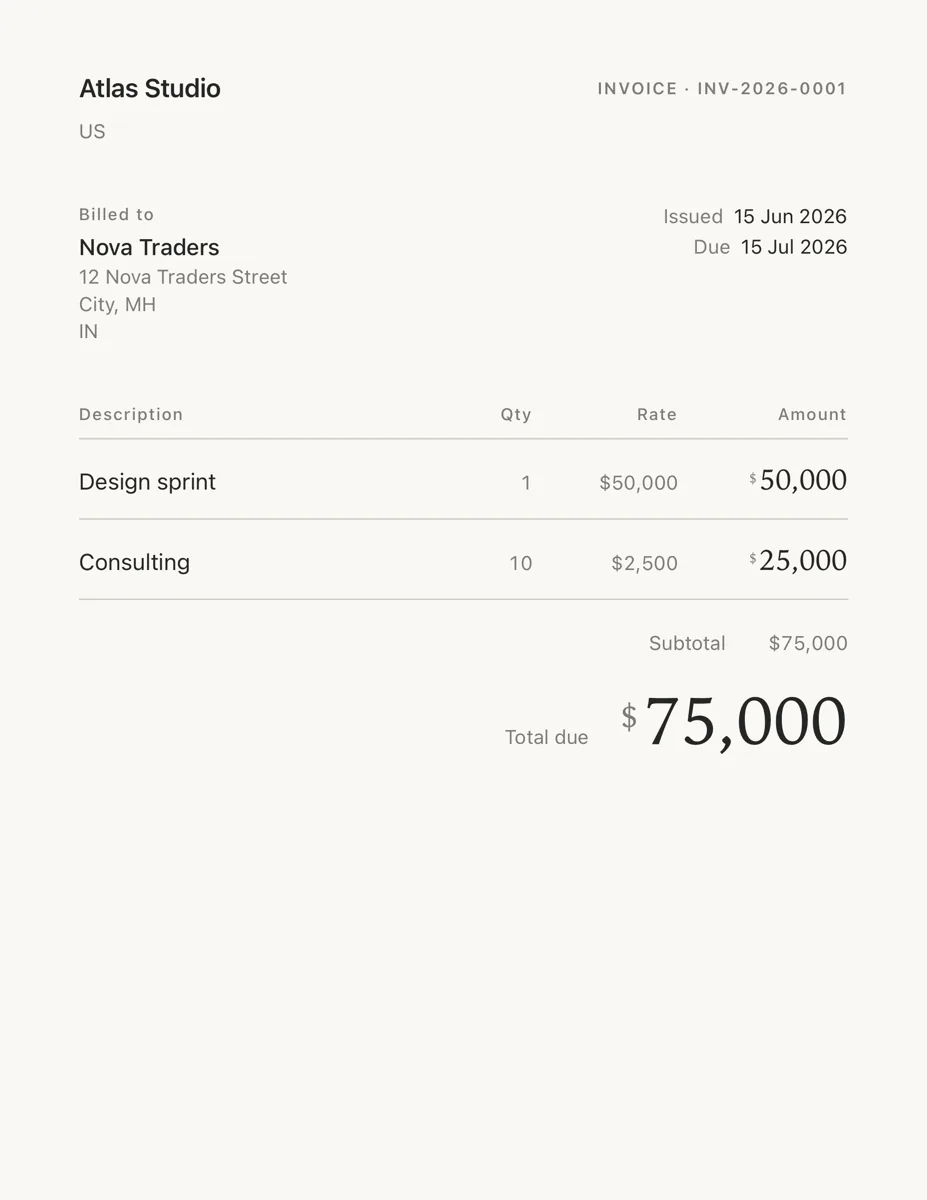
Ochre ships three composed templates — Editorial, Classic, and Statement — under Settings → Business → design. There you also choose:
- Accent color — used only on labels; money is never colored.
- Money typeface, density, and paper size (A4 or US Letter, by country).
- Fields on the paper — show or hide tax ID, ship-to, e-Way Bill, HSN/SAC, payment details, the scan-to-pay QR, signatory, the reference line, and — for India — the delivery challan button. Money facts can never be hidden.
Every change flows through to already-issued documents too — the paper is presentation; the facts stay frozen.
Sending, saving & printing
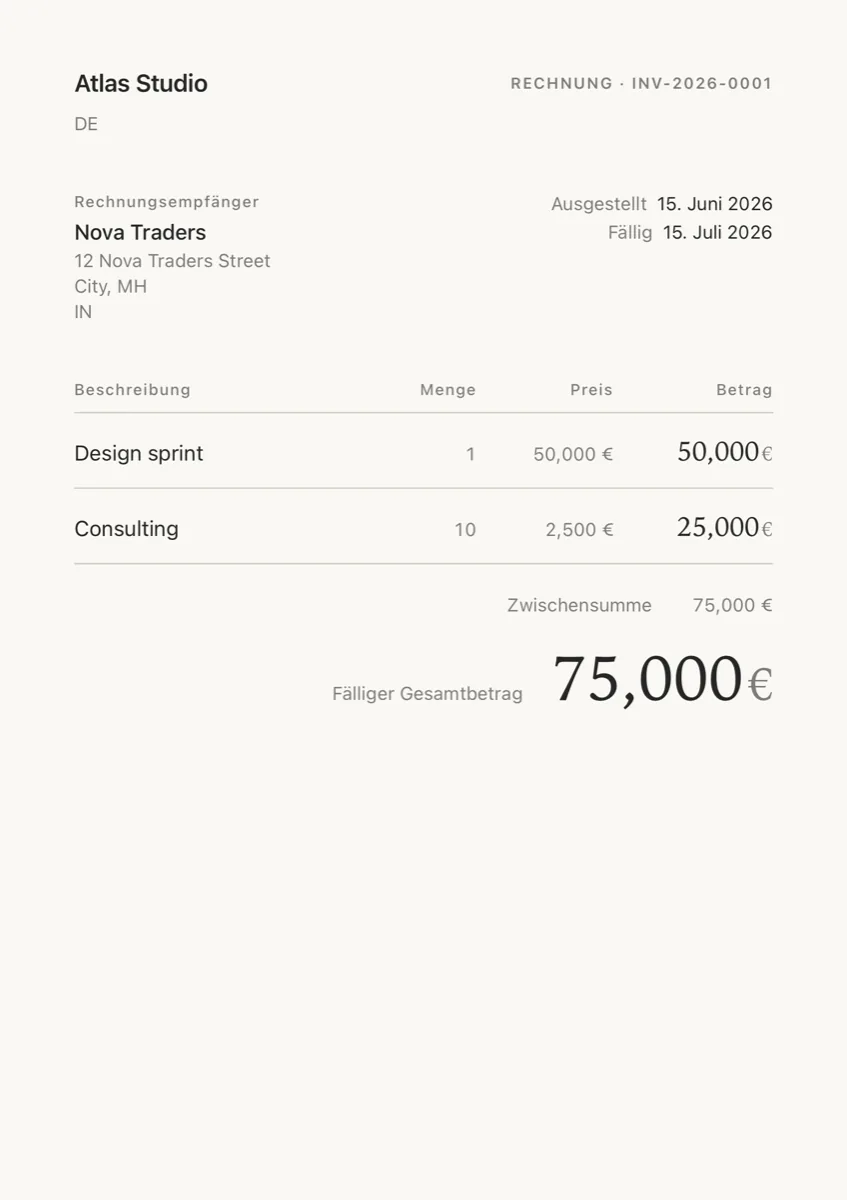
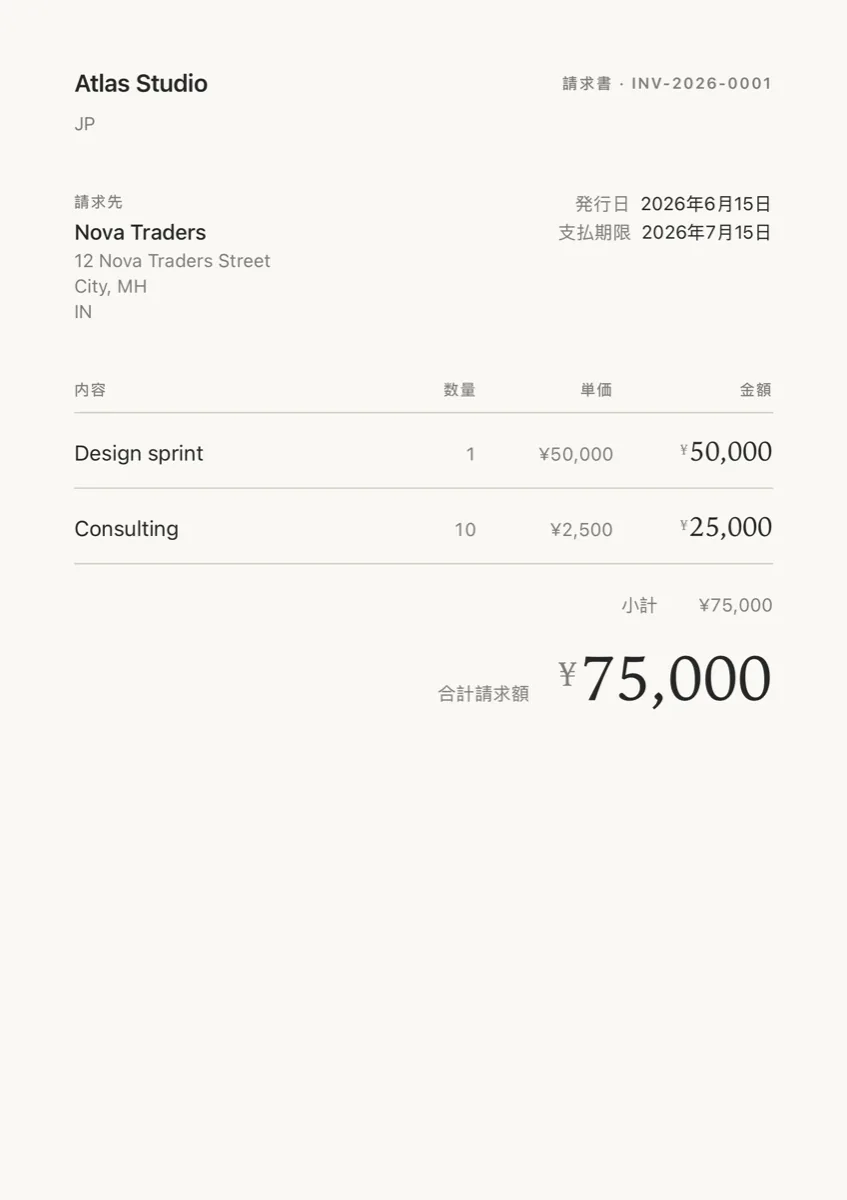
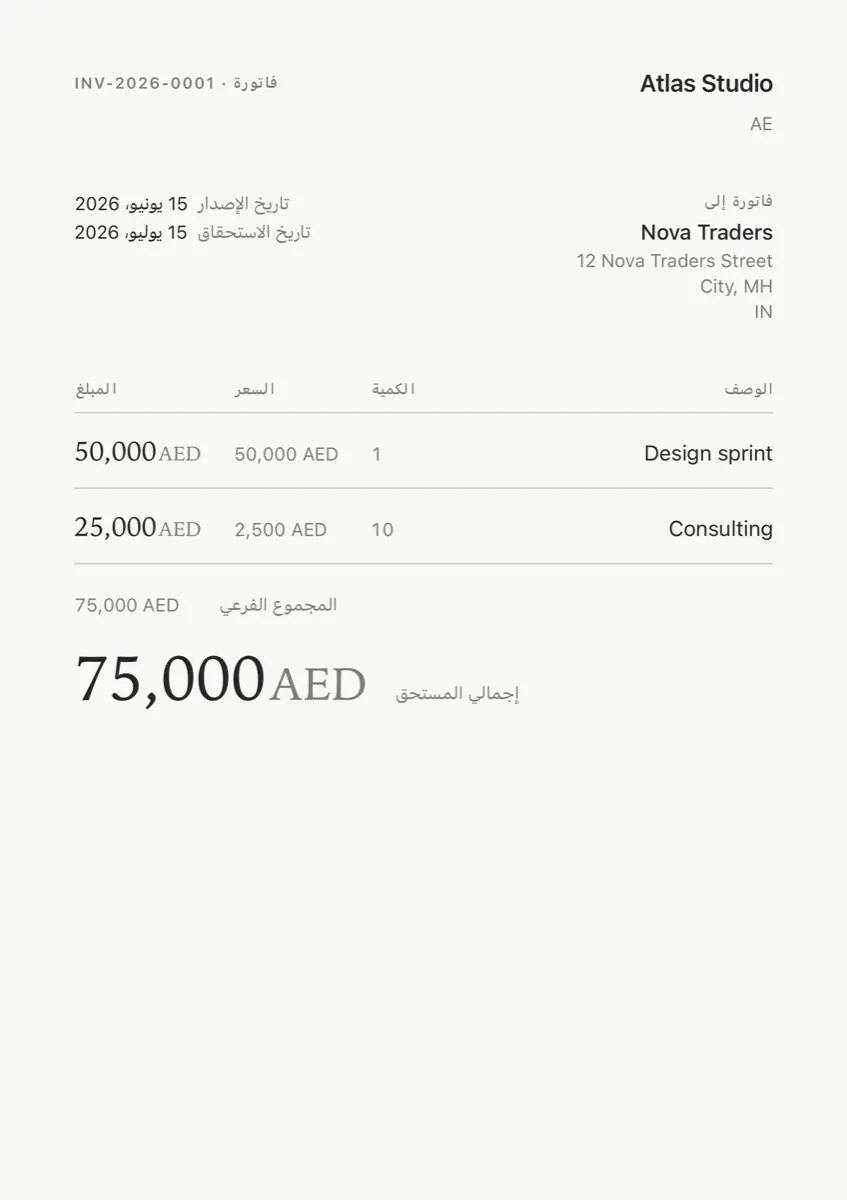
The same invoice, three clients. Ochre picks the paper size, date order, digit grouping, currency placement, reading direction, and the document’s language from the client’s market — you do not set any of it per document.
Every document has a Preview PDF button. The preview is where delivery happens, with the finished page in front of you:
- Share — the system share sheet: Save to Files, AirDrop, WhatsApp, Gmail, anywhere.
- Save PDF… (Mac) — a copy to any folder.
- Email — one tap opens a draft in your own Mail app, addressed to the client with the PDF attached; nothing sends until you press Send. Ochre stores no email account or password of its own.
- Print — straight to any printer (AirPrint on iPad).
The same flow makes receipts for payments and delivery challans (India) from an issued invoice.
Correcting a document
Something is wrong on an invoice you have already issued. What you do depends on one thing: has it actually reached your client yet?
It has not been sent — just edit it
An issued invoice keeps an Edit pencil until the moment the PDF first leaves your device. Tap it, change whatever is wrong, tap Done. The invoice number does not change and nothing new is created. Nobody ever saw the wrong version, so there is nothing to reconcile.
The pencil disappears the first time you email or share the PDF. It also will not appear on an invoice that has taken a payment, has had a credit note applied to it, or is a quotation — those have their own routes below.
If you might need to correct it, correct it before you send it. Preview first; anything you catch at that point costs nothing.
It has been sent — revise it
Tap Revise. You get a draft pre-filled with everything from the original — lines, client, dates, notes, terms, custom fields. Change what needs changing and issue it. The revision takes the next invoice number, and the original is marked Replaced and kept exactly as you sent it.
The revision prints a line naming what it replaces, so your client can see which document supersedes which. You can turn that line off per document while editing the draft.
Two documents claiming the same serial while saying different things is the one thing invoice numbering exists to prevent — which is why a sent invoice gets a new number rather than being quietly rewritten.
The amount should come down — credit note
For an agreed discount, returned goods or an overcharge, raise a credit note against the invoice. The original stays standing and untouched; the credit note records the reduction and can be applied to the invoice. This is usually the right instrument when money has already changed hands.
It should never have existed — void it
Void retires the document. It keeps its number, so no serial is ever reused, and any payments recorded against it are reversed. The number is spent, not recycled.
If you really need to edit a sent invoice
There is a setting for it — Settings → Editing → Edit invoices after sending, off unless you turn it on. With it on, the Edit pencil stays available after sending and the invoice keeps its number. Every change is written to that document’s activity log, which you can open from the clock icon.
Be aware of what this means: your client is holding a copy that no longer matches your books, under the same invoice number. If they have already filed it, the two versions will disagree. Send them the corrected version, and check with your accountant whether a revision or credit note is expected in your market.
Getting paid
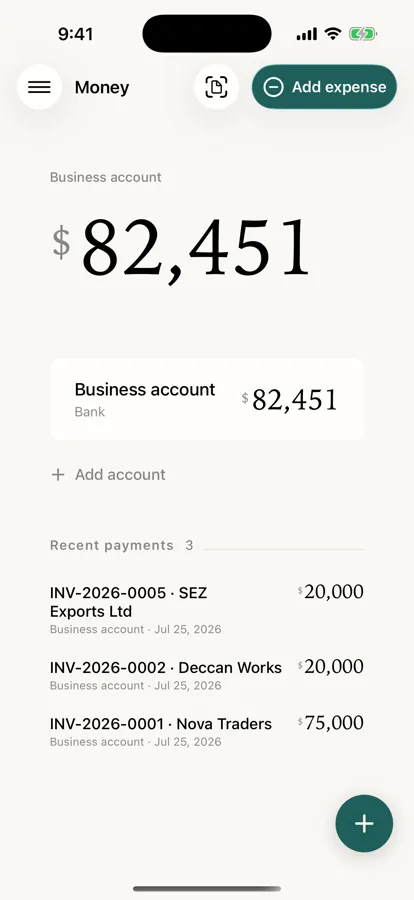
On an issued invoice, Record payment captures the amount, the account it landed in, and a method/reference note like “Bank transfer 8842” or “Cheque 001234”. Save it and the balance rolls up, the invoice recolors to on-track, and a quiet Paid stamp settles onto the paper.
Invoice · INV-2026-0006
Part-payments are fine — the invoice tracks what's still outstanding, and each payment can produce a receipt PDF stamped with the reference you entered.
Deposits
On a draft invoice or quotation, scroll to Deposit and ask for a percentage or a fixed amount upfront — set one and the other clears itself, since only one ask can be live at a time, and the figure updates as you type.
Once issued, the document carries a quiet badge until it's settled — “Deposit $500 requested,” then “Deposit paid” — right there in the list, not only on the paper. On a live quotation, Record deposit captures the cash before the job even starts, held against the quote rather than folded into an invoice that doesn't exist yet.
Convert that quotation to an invoice and the deposit follows it: the same credit, re-parented rather than duplicated, so the invoice opens already part paid.
Payment schedules
For work billed in stages, build a schedule instead of a single deposit: add stages, name each one — “Advance,” “On milestone,” “On handoff” — and give it a percentage. Ochre keeps a running total as you go and won't save a schedule short of, or over, 100%.
A schedule and a deposit are mutually exclusive — building one clears the other, so a document never carries two competing asks. Once issued, every payment you record fills the stages in order, and the document shows where it stands: “Stage 2 of 3 · $600 due.” Open it and every stage is listed — settled, current, or upcoming — with the next one due named plainly.
Payment links
Under Settings → Business → Payment details you can turn on real payment rails alongside the usual bank details and PayPal.Me handle:
- Card payments (Stripe) — paste your own Stripe restricted key (rk_…), scoped to Payment Links only. It lives in this device's Keychain alone, never in a backup, and it cannot move money, issue a refund, or read your customers — only create a link.
- PayPal — a plain PayPal.Me handle, which needs no credentials at all. You paste your handle and Ochre prints the link — there is nothing to connect and no key to keep safe.
Issue a cross-border invoice and Ochre prints whichever of these you've configured, leaning toward a real payment link; a domestic invoice leans toward the local rail instead — bank details, or UPI in India. Turning on more than one rail doesn't force a choice: everything you've switched on can print on the same invoice, and a preferred method, if you set one, just moves to the front of the list.
On an invoice with a working Stripe key, Check for payments asks Stripe whether it's been paid and proposes the entry — it never records one on its own. You confirm the amount and the account before anything lands in your books.
These are your own Stripe and PayPal accounts. Ochre has no payment account of its own and runs no server — it only builds the link, and, for Stripe, can ask whether it was paid.
Customers & the statement of account
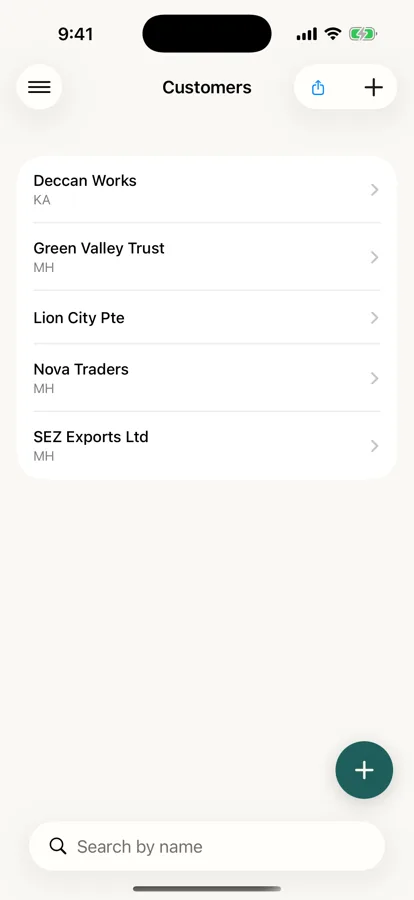
Open a customer to see who they are, what they owe, everything you've billed them, and the fastest path to billing them again. Every customer has a Statement button: pick a period — this month, last month, this quarter, this year, all time, or a custom start–end range — and Ochre produces a printable statement of account: opening balance, every invoice and payment with its reference, a running balance, and the final balance due. Share, email, or print it like any other document.
Time tracking
Settings → Records → Time opens a running list: a timer bar at the top, then every entry — unbilled first, billed below. Start it and it counts up right there; stop it and the elapsed hours are saved, rounded to the nearest hundredth.
Prefer to type hours by hand? Add hours opens the same fields a timer entry has — client, service, description, hours, hourly rate, and a Billable toggle for time you tracked but won't charge for.
Once you've logged hours for a client, a button appears for them — “Bill Atlas Studio — 4 entries” — that opens a new draft invoice with one line per entry, the rate and tax already carried from the service. Each entry is stamped as billed the moment it lands on that draft, so the same hour can never be billed twice; a billed entry turns read-only here, and you edit the invoice itself if something needs to change.
Products & services
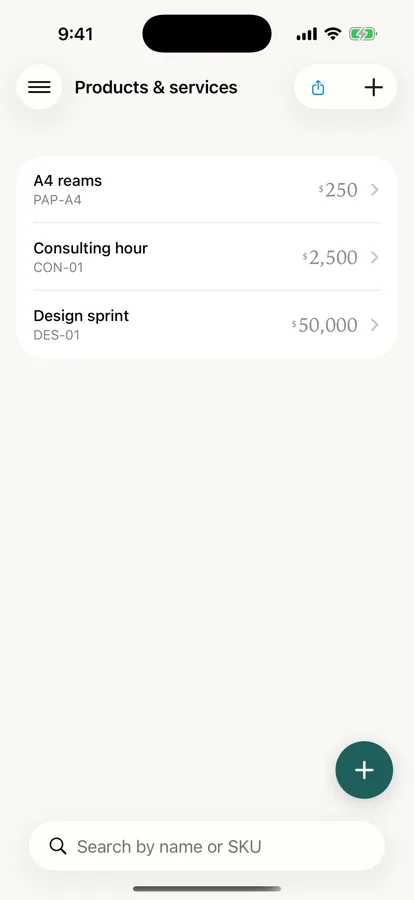
Your catalog lives under Products & services: name, SKU, price, tax class, unit, and optional HSN/SAC. Set a customer's price tier and their new lines start at that discount. Catalog items power the Tab-complete autosuggest when you build invoices. Archive anything you no longer sell — it's kept for history, out of the way.
Money & expenses
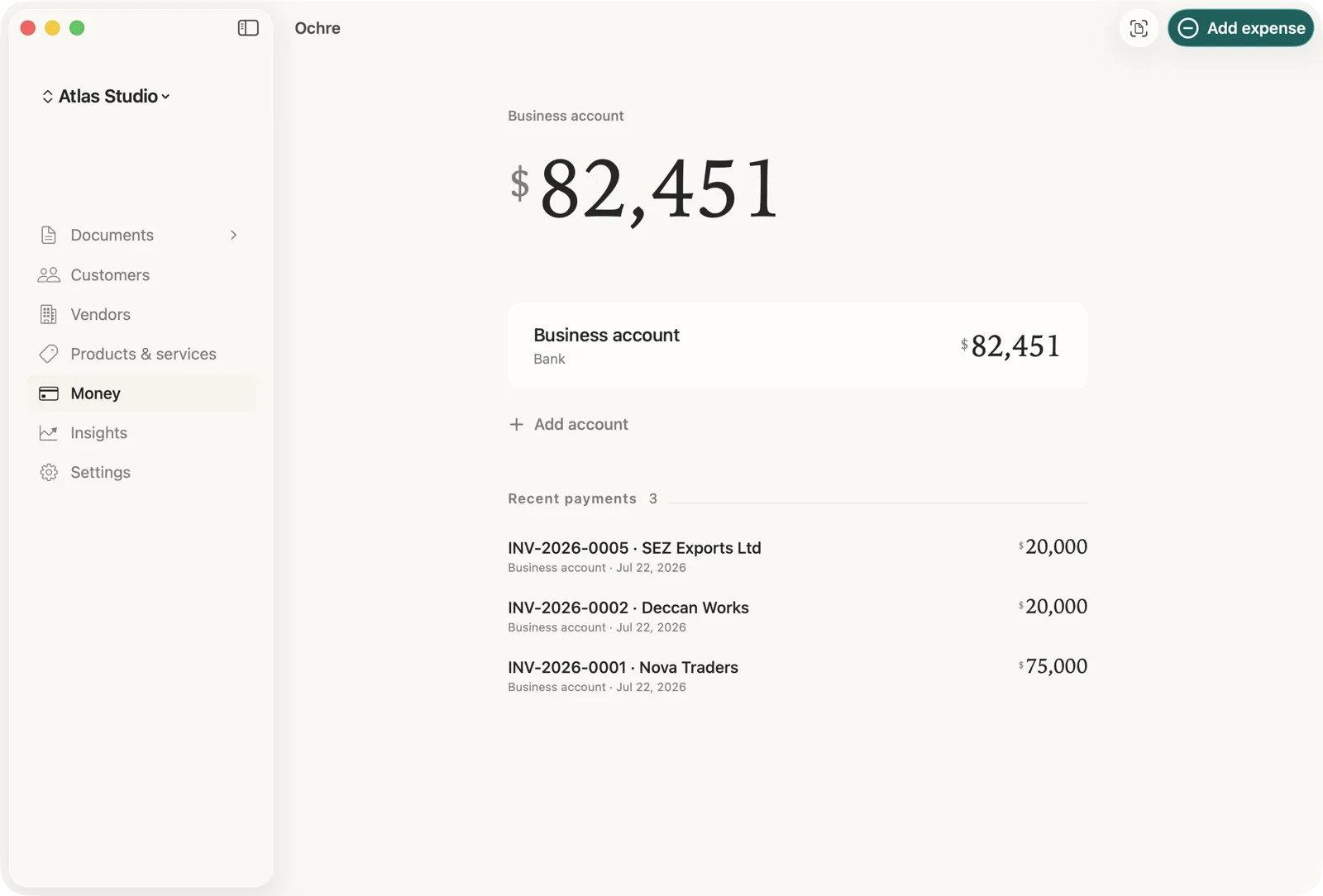
Money shows your accounts, balances, and a feed of recent payments. Add an expense with a category, vendor, and a receipt photo — Choose from Photos sits beside the usual Files picker, on iPhone, iPad, and Mac alike. Purchase orders track what you spend with suppliers. Everything is cash-basis in your base currency, with foreign amounts converted at the document's rate.
Insights
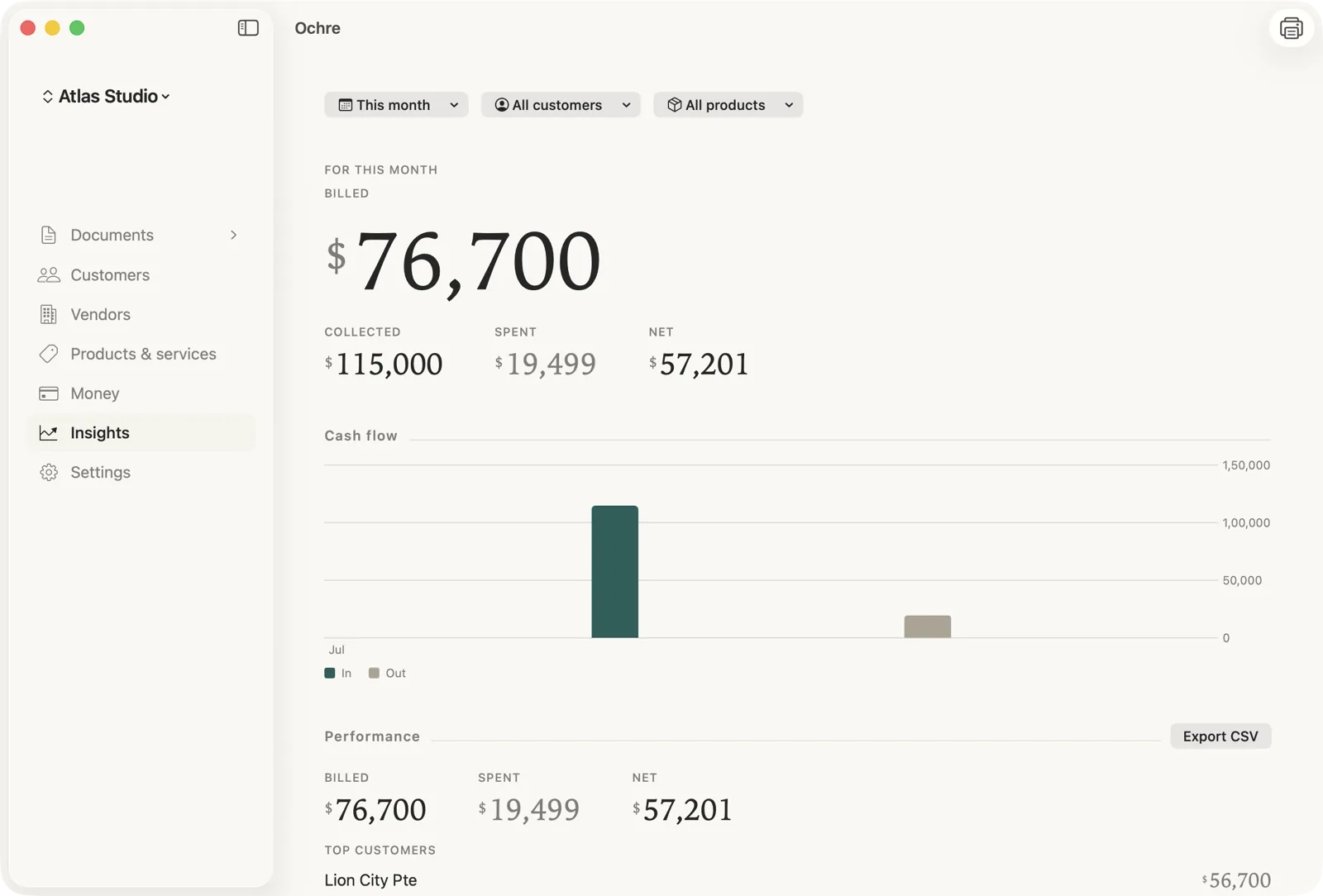
Insights gives you the numbers at a glance — outstanding, overdue, paid this month, spent this month; receivables by age; and money-in versus money-out over a range you choose. India users also get a GST tax report by component and period. Use Print report to save or send the page as a PDF.
Deeper filtering — year-to-date and month-to-date, per-customer and per-product breakdowns, and custom date ranges — is planned.
India & GST
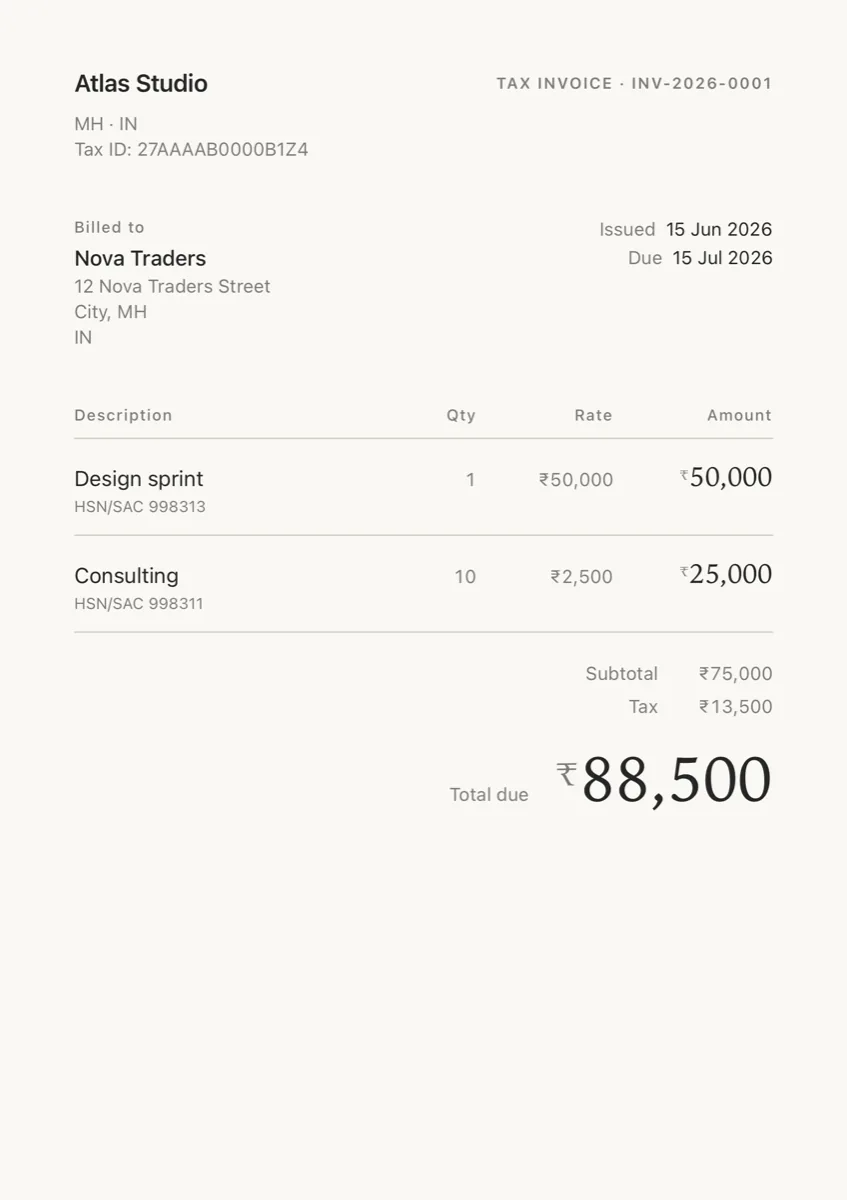
When your business country is India, Ochre turns on the GST features: correct CGST / SGST / IGST splits, tax treatment per party (regular, export or SEZ zero-rated, exempt) with the right words on the invoice, e-Way Bill capture, proforma marking on quotes, a scan-to-pay UPI QR on rupee invoices, and delivery challans from issued invoices. These stay out of the way for businesses elsewhere — Ochre is world-ready first.
Outside India, tax works the same way in spirit: Settings → Tax rates lets any business set up the tax classes it charges, with a starting rate suggested for its own country from a global catalog. These starting rates are a considered default, not a filing — confirm the numbers for your business with your own tax advisor. See how this works for your own market in the invoicing guides by country.
Backup & restore
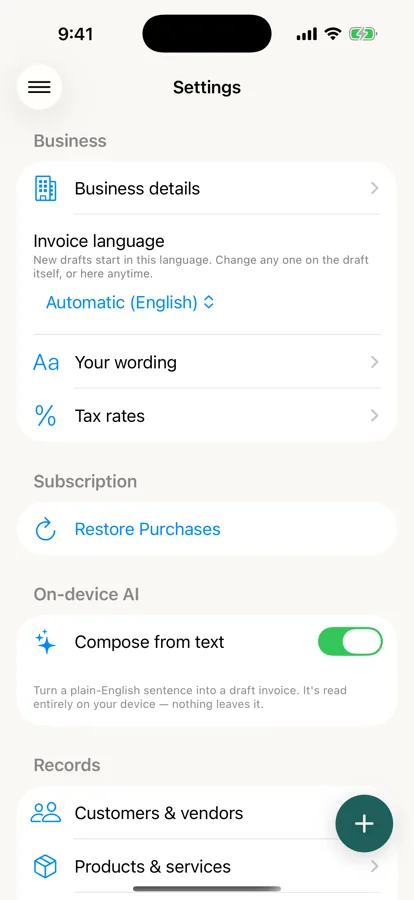
Ochre keeps everything on the device you're using. There are two ways to put your books on another device you own, and both run through your own Apple ID.
Turn on iCloud sync (Settings → Sync) and your iPhone, iPad, and Mac keep the same books in step through the private database of your own iCloud account. It is off until you switch it on. Or leave it off and move a backup yourself: save one (Settings → Data → Back up) to iCloud Drive, or anywhere else you choose, then open Ochre on the other device and import it. Either way, no server of ours sits in between.
Backups are yours to keep: .ochre files, encrypted by default and protected by a passphrase only you hold — turn encryption off for a specific export if you'd rather not use one. Turn on Automatic backup (daily or weekly, plus a backup whenever you close the app after changes) and Ochre keeps a rolling set, always encrypted. You can export or import by hand any time.
Without your passphrase a backup cannot be restored. To move to a new device or recover: install Ochre, then import your .ochre file.
Starting over
Settings → Data → Erase all data wipes every document, contact, product, account, and setting on this device and returns the app to onboarding. It doesn't reach any other device — each keeps its own local copy — and your encrypted backup files on disk are not touched; import one to restore. Take a fresh backup first if there's any doubt.
Privacy
- Local-first — reads and writes stay on your device; nothing leaves it unless you share, print, email, or back it up yourself.
- No third-party servers, trackers, or ad SDKs.
- App Lock — optionally require Face ID, Touch ID, or your passcode to open the books.
- Backups are encrypted by default with your passphrase; automatic backups always are, and you can turn encryption off for a specific manual export.
Keyboard shortcuts
On a Mac, or an iPad with a hardware keyboard.
On a Mac with keyboard navigation on (System Settings › Keyboard), the whole flow works without a mouse: ⌘1 for Documents, ⇥ until the focus ring sits on the invoice you want, Space to open it.
What the buttons mean
On iPhone there is no room for six or seven labelled buttons across the width of the screen — Ochre used to try, and the words broke apart mid-syllable. So on iPhone many action buttons show an icon alone, while iPad and Mac have the room to show the name beside it. Every button in Ochre’s action bars is listed here, whether or not your device draws its name.
Using VoiceOver? You are not affected by any of this. Every button reads its full name aloud on every device, whether or not the name is drawn on screen.
On a draft
On an issued or sent invoice
Edit and Revise are not the same act. Edit corrects the invoice you already have. Revise leaves it standing and creates a second one, with the next number, that replaces it. If you only want to fix a typo on something nobody has seen yet, you want Edit.
In the PDF preview
Elsewhere in the app
Sending an invoice for the first time is what locks it. See Correcting a document for what to do after that.
Accessibility
Invoicing is not optional work, so the app that does it cannot be optional about who can use it. Accessibility in Ochre is checked by machines on every change — contrast is measured, not eyeballed — and then checked again by hand. Here is what that means in practice.
VoiceOver
Every button in Ochre has a spoken name, including the icon-only ones on iPhone — the button glossary above lists exactly what each one says. Amounts are spoken as words (“₹ fifty‑nine thousand”, not a string of digits), and a document’s status is always announced as a word — Paid, Overdue, Draft — never carried by colour alone. Each invoice card on the home screen reads as one element: client, amount, status, in one pass.
Larger text
Ochre’s type scales with your system text size, up to the largest accessibility sizes. At the top setting the invoice screen rearranges itself rather than squeezing: the total takes a full line of its own, invoice numbers shrink slightly instead of losing digits, and action buttons stack with their full names.
Contrast & dark mode
Every shade of text in the app — down to the quiet captions and de‑emphasised amounts — meets the WCAG AA contrast bar against every surface it appears on. That holds in dark mode too, in all four of Ochre’s night papers: Settings › Appearance lets you choose between Ochre charcoal, Ink, Teal ink and Espresso, and the ink stays readable on each. With Increase Contrast on, the quietest text steps up further.
Keyboard
On a Mac the whole app works without a mouse — see Keyboard shortcuts for the full route, including moving through the document stream with ⇥ and opening with Space.
Found something VoiceOver reads wrongly, or a screen that misbehaves at a large text size? That is a bug, not a preference — tell us and it gets a ticket like any other defect.